

NOTE: Full 4k recording requires a lot of storage space. It's recommended your storage device be at least 128GB in size for 4k recordings. Menu setting changes to resolution and bitrate can reduce file size. See "Adjust Resolution" section below.
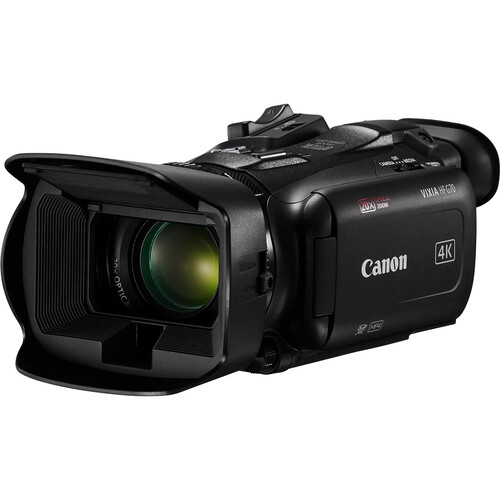
The Canon VIXIA HF G70 UHD 4K Camcorder is a compact camcorder that records sharp, smooth ultra-high-definition video.
Product overview
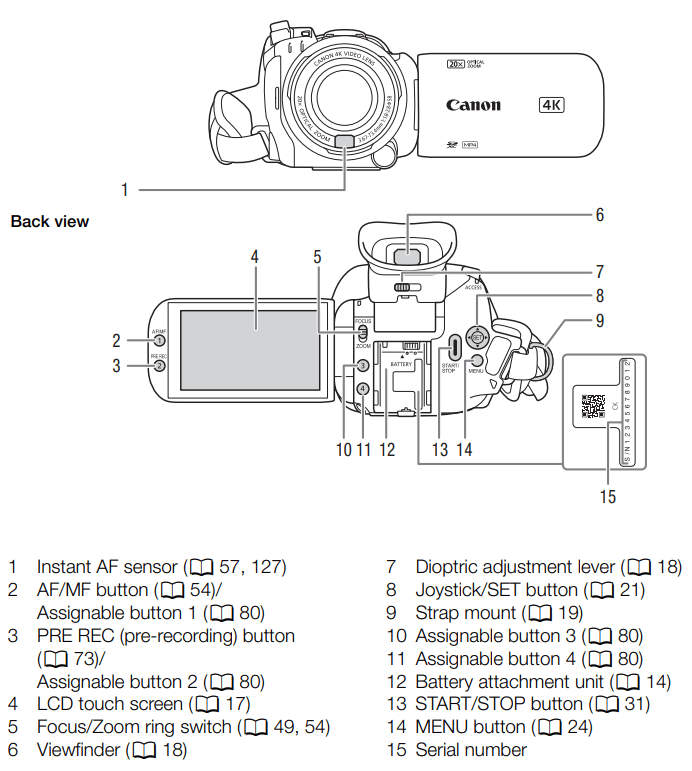
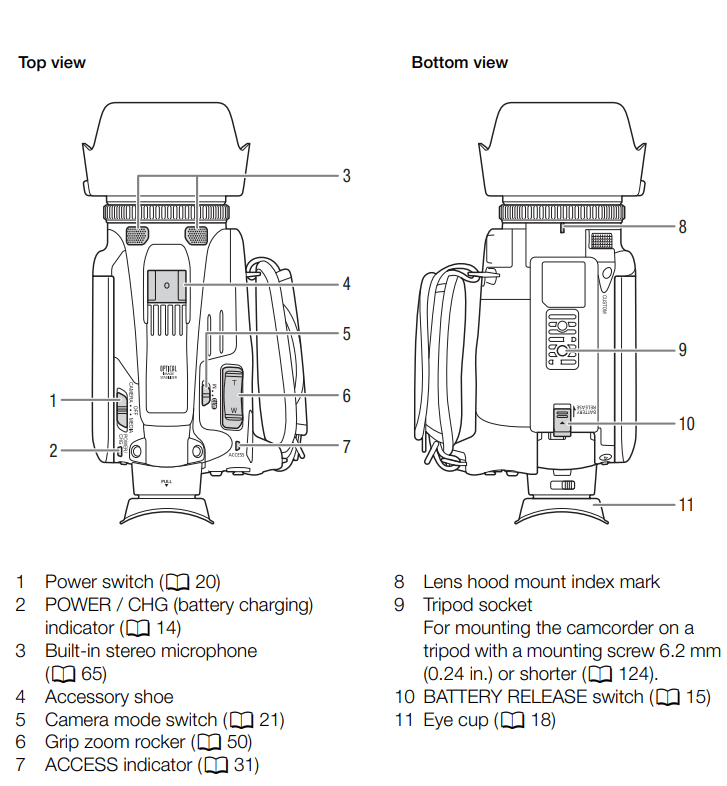
Getting Started
Turning on the camera and basic controls
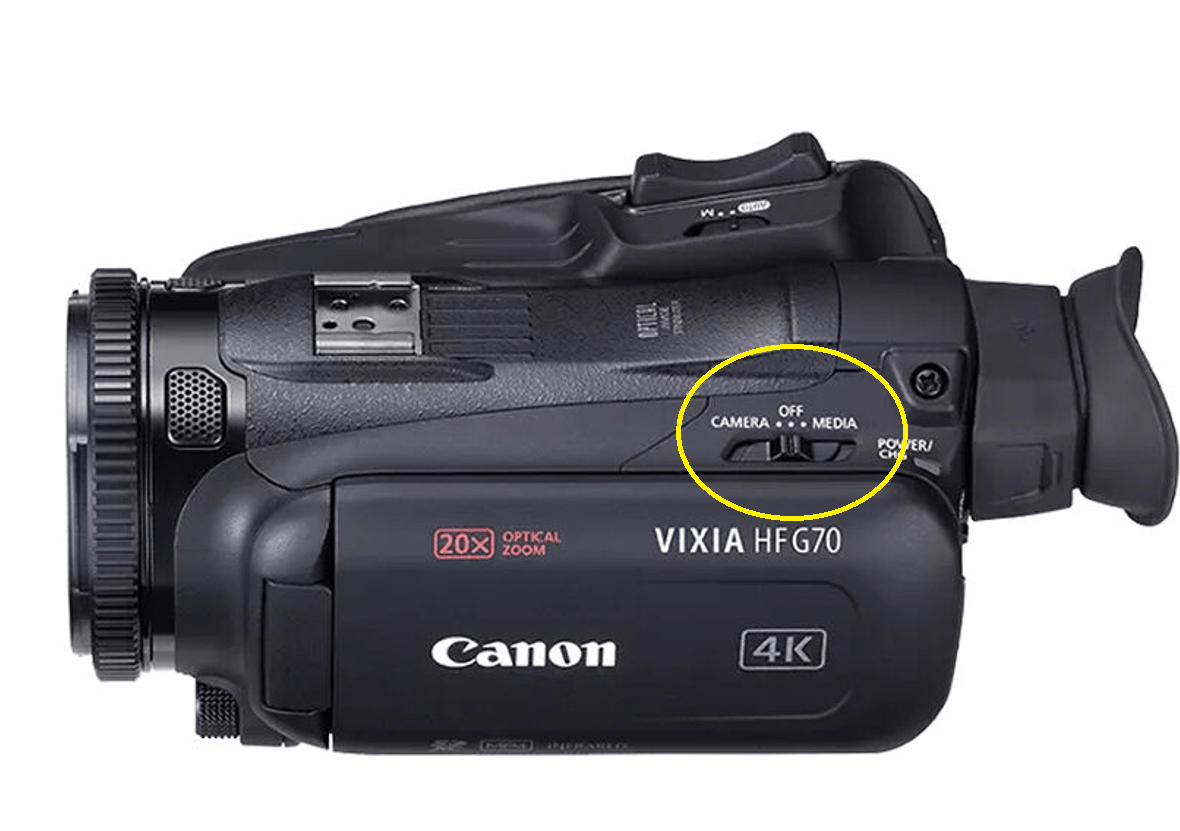
Power On / Off
-
Slide the POWER/CHG switch to CAMERA to shoot or MEDIA to play back clips.
-
Slide to OFF to shut it down.
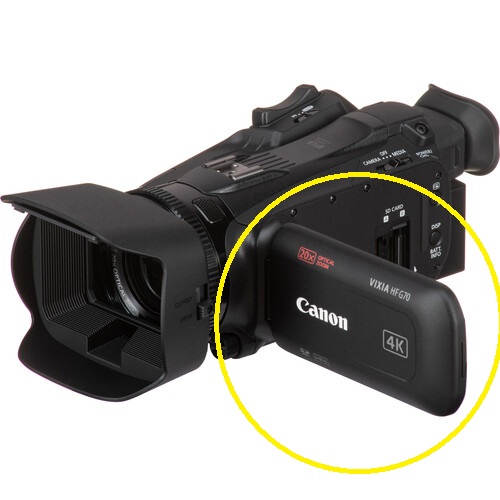
Viewfinder / LCD
-
Flip out the LCD screen or pull out the electronic viewfinder to see what you’re filming.
Adjust resolution or file output size on the Canon VIXIA HF G70 4K Camcorder
Change Resolution (4K vs Full HD)
-
Press the MENU button
-
Go to Recording Settings (camera icon tab)
-
Select Movie Format / Resolution
-
Choose:
-
4K UHD (3840×2160) – highest quality, largest files
-
Full HD (1920×1080) – smaller files, easier to edit/share
-
If your goal is smaller file size, switching to Full HD makes the biggest difference.
Adjust Bitrate (File Size per Minute)
Within each resolution, you can choose different bitrate options: MENU → Recording Settings → Bitrate / Recording Mode
- Higher bitrate = better quality + larger files
- Lower bitrate = smaller files + slightly reduced quality
Example (varies slightly by mode):
- 4K: ~150 Mbps (large files)
- Full HD: options like 35 Mbps, 17 Mbps, etc.
Quick Size Comparison (Approximate)
-
4K 150 Mbps → ~1.1 GB per minute
-
1080p 35 Mbps → ~260 MB per minute
-
1080p 17 Mbps → ~130 MB per minute
Start recording
NOTES:
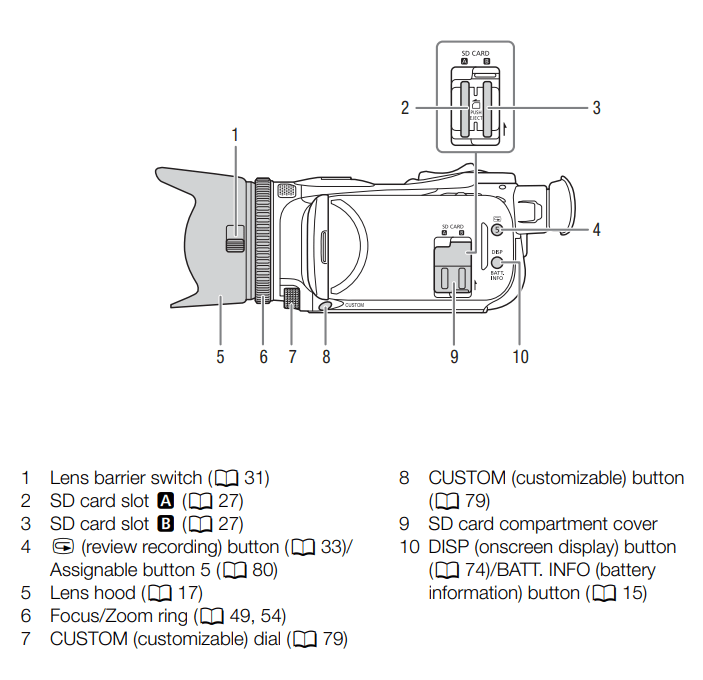
- The Canon VIXIA HF G70 4K Camcorder records only to SD cards (no internal storage at all).
- You must have an SD card inserted to record anything.
- Use relay recording setting: Automatically switches to second card when first fills up.
- Use simultaneous recording setting: Records backup to both cards.
-
Make sure you’re in CAMERA mode.
-
Point at your subject.
-
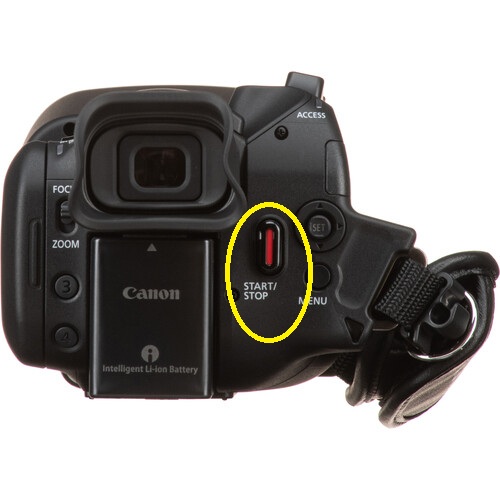
Press START/STOP to begin recording. Press again to stop.
Zoom
-
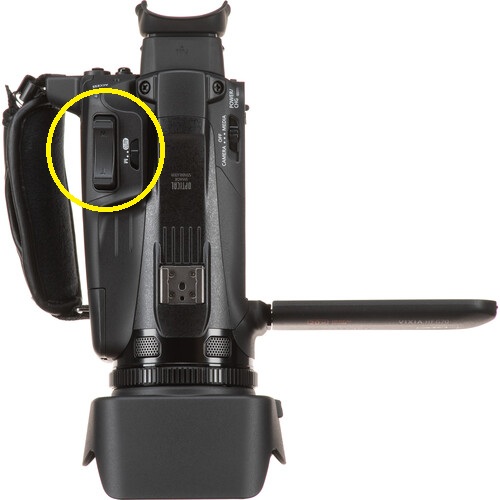
Use the zoom rocker on the camcorder to zoom.
-
T = telephoto (closer)
-
W = wide (farther)
-
-
The camcorder has 20× optical zoom for powerful close-ups.
Autofocus
-
By default, autofocus finds and focuses on subjects automatically—great for most shooting situations.
Shooting modes (from simple to advanced)
AUTO Mode (Easy)
-
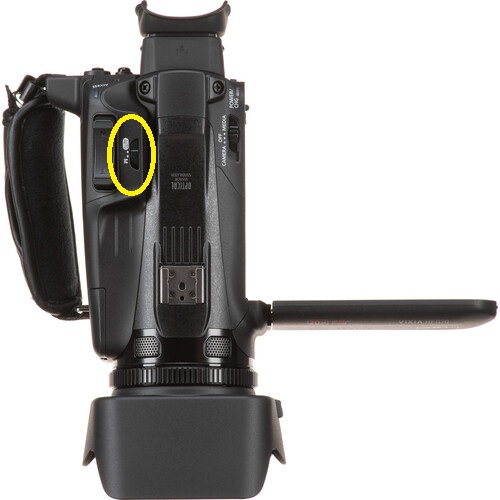
Set the mode switch to AUTO (N) and the camcorder chooses the best settings for you. This is perfect for beginners.
Manual Mode (Creative Control)
-
Switch to M to adjust settings like focus, exposure, shutter speed and more. This lets you get creative once you’re comfortable with basics.
Audio Tips
-
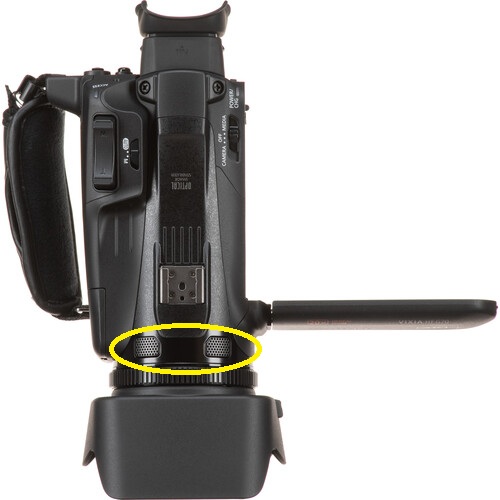
The built-in stereo microphone records sound.
-
An external mic can be used with the Vixia camcorder as well.
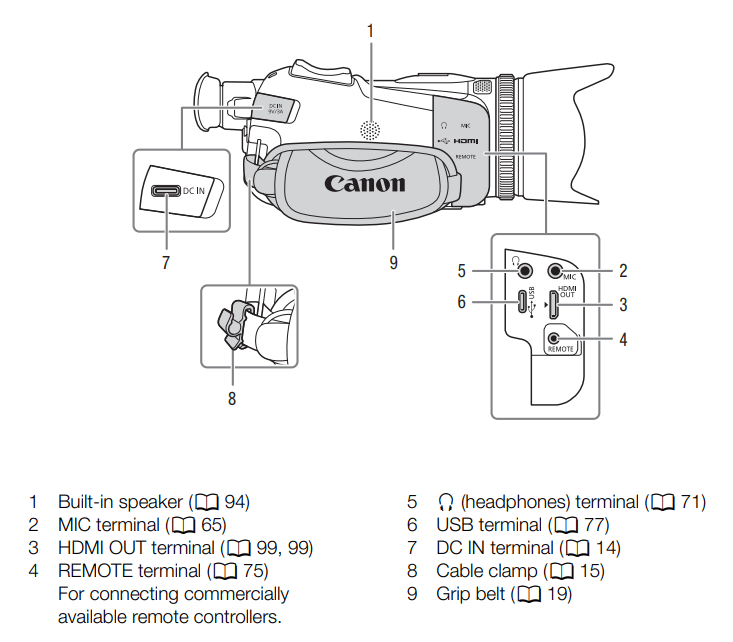
- When an external microphone is connected to the MIC terminal on the Canon VIXIA HF G70, the camcorder automatically switches to use that external mic (you don’t manually choose it in a menu), and you can adjust its levels via the Audio Setup/FUNC menu if needed once it’s plugged in.
-
You can monitor audio with headphones when connected (see Diagram 1, #5)
Playback & File Transfer
Playback
-
Switch to MEDIA mode to review your clips on the screen.
Transfer to Computer
-
Connect via USB-C to your computer and copy files from the SD card (see Diagram 1, #6)
Quick Tips for Better Videos
- Keep the camcorder steady - use a tripod for smooth shots.
- Use the zoom sparingly - digital zoom can degrade quality; optical zoom keeps it sharp.
- Check battery life before long shoots, if not using direct power.
- Practice composition (rule of thirds) to make your videos look more professional.
External Resources:

Add a comment to: Using the Canon VIXIA HF G70 4k Camcorder